
IOS smartphones and tablets
How to setup IPTV on Apple/IOS with IPTV Smarters Player :
Step 1: To begin, download the IPTV Smarters app from the Apple Store using this URL: https://apps.apple.com/app/smarters-player-lite/id1628995509. Alternatively, you can search for it on the App Store using the keywords “Smarters Player Lite“.
Step 2: After the app has downloaded, open it and select “Login With Xtream Codes API“.
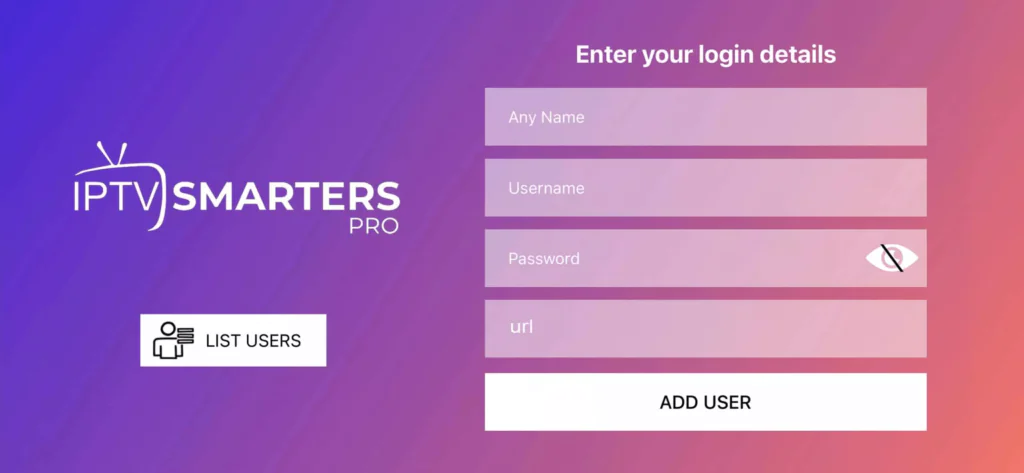
Step 3: Enter the login details provided to you after subscribing to The Beast Stream service. Once entered, click on “ADD USER” to proceed to the next section.
Step 4: Wait a few seconds for the login to complete.
Step 5: Once logged in, click on the “Live TV” icon, as shown in the image.
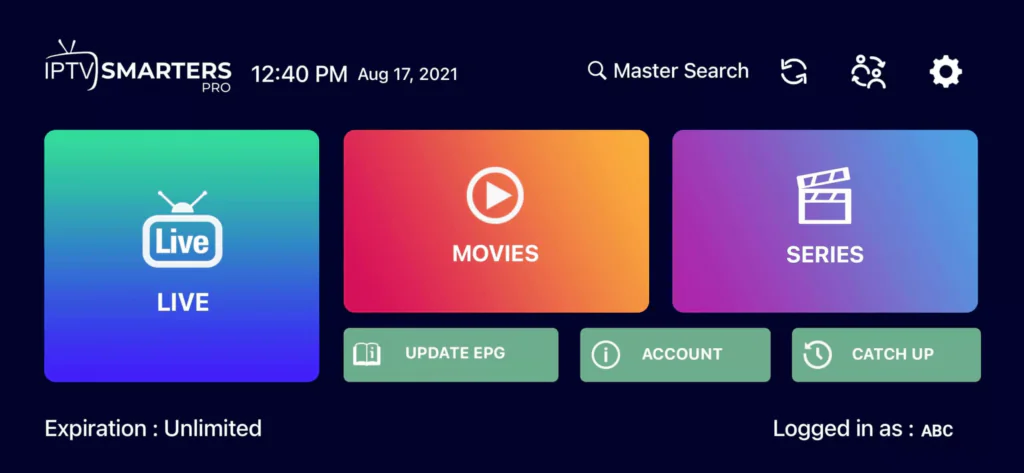
Step 6: Select the channel group that you wish to watch and proceed to the next section.
Step 7: Click on the channel name and then double-click on the small screen to turn it into full screen mode.
Step 8: There is no need to add an EPG URL. Simply click on “Install EPG“.
How to setup IPTV on Apple/IOS with IPTV Smarters Player :
Step 1: To begin, download the IPTV Smarters app from the Apple Store using this URL: https://apps.apple.com/in/app/smarters-player-lite/id1628995509. Alternatively, you can search for it on the App Store using the keywords “Smarters Player Lite“.
Step 2: After the app has downloaded, open it and select “Login With Xtream Codes API“.
Step 3: Enter the login details provided to you after subscribing to The Beast Stream service. Once entered, click on “ADD USER” to proceed to the next section.
Step 4: Wait a few seconds for the login to complete.
Step 5: Once logged in, click on the “Live TV” icon, as shown in the image.
Step 6: Select the channel group that you wish to watch and proceed to the next section.
Step 7: Click on the channel name and then double-click on the small screen to turn it into full screen mode.
Step 8: There is no need to add an EPG URL. Simply click on “Install EPG“.
Android ( smartphones, tablets and TV boxes )
How to setup IPTV on Android with IPTV Smarters Player :
Smart TVs (Samsung, LG, Sony, etc.)
Other smart TVs
Step 1: From your TV store on Samsung, LG, or other compatible devices, you can download any of the following applications: SetIPTV, NetIPTV, Smart IPTV, IBO PLAYER, FLIX IPTV, SMARTONE, SS IPTV, OTT Player, or IPTV EXTREME.
Step 2: Once you have installed the chosen application, open it and you should see the MAC address displayed on the screen, as shown in the example below:
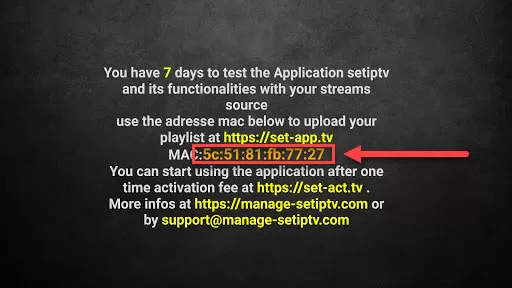
Step 3: Send us the MAC address through any of the following channels: Whatsapp, Email.
Step 4: After a few minutes, restart or reboot your TV and then open the application. You should now be able to access the Beast Stream.
Smart TVs (ALL)
How to Install IPTV on Smart TVs (All Brands) Complete Guide 2026
Installing IPTV on Smart TVs is one of the most popular ways to enjoy live TV, sports, movies, and series without cables or satellite dishes. Whether you own a Samsung TV, LG Smart TV, Android TV, or Google TV, IPTV setup is simple once you know the correct steps.
This guide explains how to install IPTV on Smart TVs of all brands, using reliable IPTV apps and login methods. The instructions are updated for 2026 and optimized for users in the United States.
What You Need Before Installing IPTV on a Smart TV
Before starting, make sure you have:
- A Smart TV connected to the internet
- A stable internet speed (minimum 15–20 Mbps recommended)
- An active IPTV subscription
- Your IPTV login details (Xtream Codes or M3U link)
Most premium IPTV services in the USA provide clear login credentials compatible with Smart TVs.
How to Install IPTV on Samsung Smart TVs (Tizen OS)
Samsung Smart TVs do not allow APK files, so IPTV apps must be installed from the official store.
Recommended Apps for Samsung TVs
Installation Steps
- Open the Samsung App Store
- Search for IPTV Smarters Pro
- Download and install the app
- Open the app and choose Login with Xtream Codes API
- Enter:
- Server URL
- Username
- Password
- Save and wait for channels to load
Your IPTV content will appear automatically once connected.
How to Install IPTV on LG Smart TVs (webOS)
LG Smart TVs use webOS and support IPTV apps directly from the LG Content Store.
Recommended Apps for LG TVs
- IPTV Smarters Pro
- IBO Player Pro
- Hot Player
Installation Steps
- Open the LG Content Store
- Search for your IPTV app
- Install and launch the app
- Log in using Xtream Codes or M3U URL
- Restart the app if needed
LG TVs handle IPTV very smoothly, especially for live channels and VOD.
How to Install IPTV on Android TV & Google TV
Android TV and Google TV offer the best flexibility for IPTV.
Recommended IPTV Apps
- IPTV Smarters Pro
- TiviMate
- IBO Player
Installation Steps
- Open the Google Play Store
- Install IPTV Smarters Pro or TiviMate
- Launch the app
- Select Xtream Codes API
- Enter your IPTV credentials
- Load channels and EPG
Android TVs support advanced features like catch-up, favorites, and multi-screen layouts.
IPTV Apps That Require Website Activation
Some IPTV apps do not accept login details directly on the TV.
Examples:
- IBO Player Pro
- Hot IPTV
These apps require:
- Opening the app to get MAC Address / Device ID
- Visiting the app’s website
- Uploading your M3U link
- Refreshing the app on your TV
Once activated, channels load automatically.
Best Login Method for IPTV on Smart TVs
For most users, Xtream Codes API is the best option because it:
- Loads faster
- Organizes channels better
- Supports EPG and VOD properly
M3U links are still supported but are more basic.
If you want a Smart TV-optimized IPTV subscription, IPTV Empire offers high-quality streaming, fast servers, and full compatibility with Samsung, LG, Android TV, and Google TV.
👉 Try IPTV Empire today and enjoy premium IPTV USA content on all your Smart TVs.
Frequently Asked Questions
Can I install IPTV on any Smart TV?
Yes. Most Smart TVs support IPTV apps directly or through activation-based players.
Do I need a Firestick if I have a Smart TV?
Not necessarily. Many Smart TVs run IPTV apps natively, but Firestick can add flexibility.
Is IPTV legal in the USA?
IPTV itself is legal. Always choose a provider that complies with local regulations.
Which Smart TV is best for IPTV?
Android TV and Google TV offer the most IPTV app compatibility, followed closely by Samsung and LG TVs.
Final Thoughts
Installing IPTV on Smart TVs is fast, easy, and reliable when using the right apps and a quality IPTV subscription. Whether you’re watching sports, movies, or live TV, Smart TVs provide a cable-free experience with excellent picture quality.
This guide covers how to install IPTV on Smart TVs (all brands) and is designed to help USA users get started without confusion.
Windows PCs/MACs
How to Set Up IPTV on Windows PC & Mac (Easy Guide – 2026)
Watching IPTV on a Windows PC or Mac is a great option if you prefer using a laptop or desktop instead of a TV. Desktop IPTV setups are stable, flexible, and perfect for everyday streaming at home, at work, or while traveling.
This guide is fully updated for 2026 and written specifically for USA users who want a reliable IPTV USA experience on Windows or macOS.
Why Use IPTV on a Desktop or Laptop?
Using IPTV on a computer offers several advantages:
- Large screen and keyboard control
- No extra devices required
- Easy app installation
- Stable internet connection
- Perfect for multitasking
Both Windows and macOS support IPTV very well with the right applications.
How to Set Up IPTV on Windows PC
Windows offers the widest selection of IPTV desktop apps. Most of them can be downloaded safely from the Microsoft Store or official websites.
IPTV Smarters Pro (Windows – Recommended)
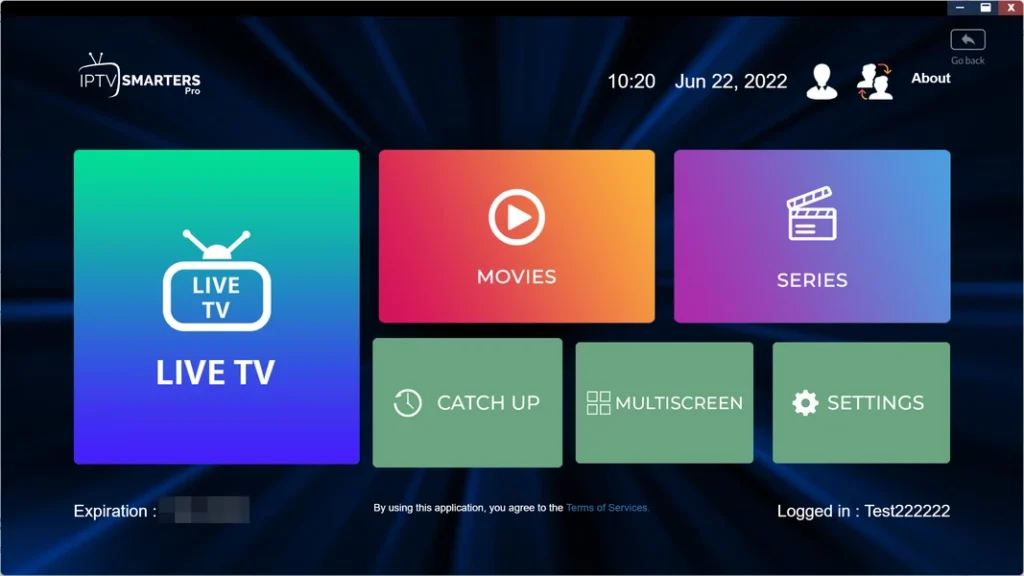
Download Link : https://www.iptvsmarters.com/download?download=windows_app
IPTV Smarters Pro is the most popular IPTV app for Windows.
- Free to use
- Beginner-friendly interface
- Supports live TV, VOD, and EPG
- Works perfectly with Xtream Codes API
This is the best option if you’re setting up IPTV on Windows for the first time.
👉 Official app: IPTV Smarters Pro
Other IPTV Apps for Windows
You may also choose from these alternatives:
- IBO Player Pro – Paid app with a free trial and lifetime activation option
- Hot Player – Paid app with flexible activation plans
- Zen IPTV Player – Lightweight and simple
- iM IPTV Player – Free with optional premium features
- Vu Player Pro – Clean interface with upgrade options
All of these apps can be downloaded safely from the Microsoft Store or their official sources.
How to Log In to IPTV Apps on Windows
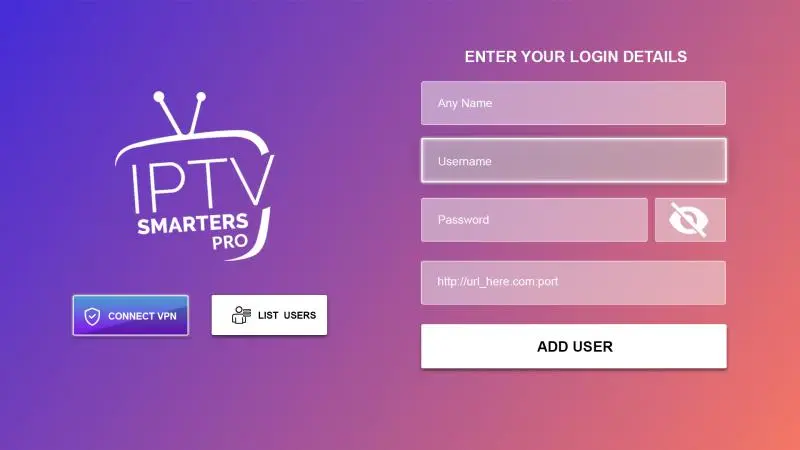
Once your IPTV app is installed, follow these steps:
- Open the IPTV app
- Select Login with Xtream Codes API
- Enter the details provided by your IPTV provider:
- Any Name (custom label)
- Username
- Password
- Server URL
- Confirm the login
- Wait a few seconds while channels and content load
Your IPTV service will then be ready to stream.
Apps That Require Website Activation (Windows)
Some IPTV apps, such as IBO Player Pro and Hot Player, require activation through their official website using an M3U playlist link.
Once the M3U link is uploaded:
- Restart or refresh the app
- Channels and content will load automatically
Apps like IPTV Smarters Pro do not require website activation and allow direct login inside the app.
How to Set Up IPTV on Mac (macOS)
Mac users have fewer native IPTV apps compared to Windows, but setup is still quick and simple.
IPTV Smarters Pro (macOS – Best Option)
IPTV Smarters Pro is also available for macOS and works almost exactly like the Windows version.
- Free to use
- Clean interface
- Supports Xtream Codes API
- Ideal for live TV and VOD
Most Mac users choose IPTV Smarters Pro for the best overall IPTV experience.
VLC Media Player (Mac – Basic Alternative)
VLC can also be used with an M3U playlist link.
- Free and lightweight
- Works for live channels only
- No EPG or full TV-style layout
This option is suitable if you only want quick access to channels without advanced features.
🚀 Why Choose IPTV Empire for Desktop IPTV?
If you want a smooth and reliable desktop IPTV experience, IPTV Empire is the perfect solution. Our IPTV USA service works seamlessly on Windows PCs and Macs, offering fast activation, stable servers, HD & 4K streaming, and premium American channels.
👉 Join IPTV Empire today and enjoy powerful IPTV streaming on your desktop or laptop.
Final Thoughts
Setting up IPTV on a Windows PC or Mac is fast and hassle-free. Install a desktop IPTV app, log in with your details, and start streaming instantly.
For most users, IPTV Smarters Pro remains the easiest and most reliable choice on both Windows and macOS, delivering a smooth IPTV experience in the USA.
MAG boxes
How to Set Up IPTV on MAG boxes (Quick & Easy Guide – 2026)
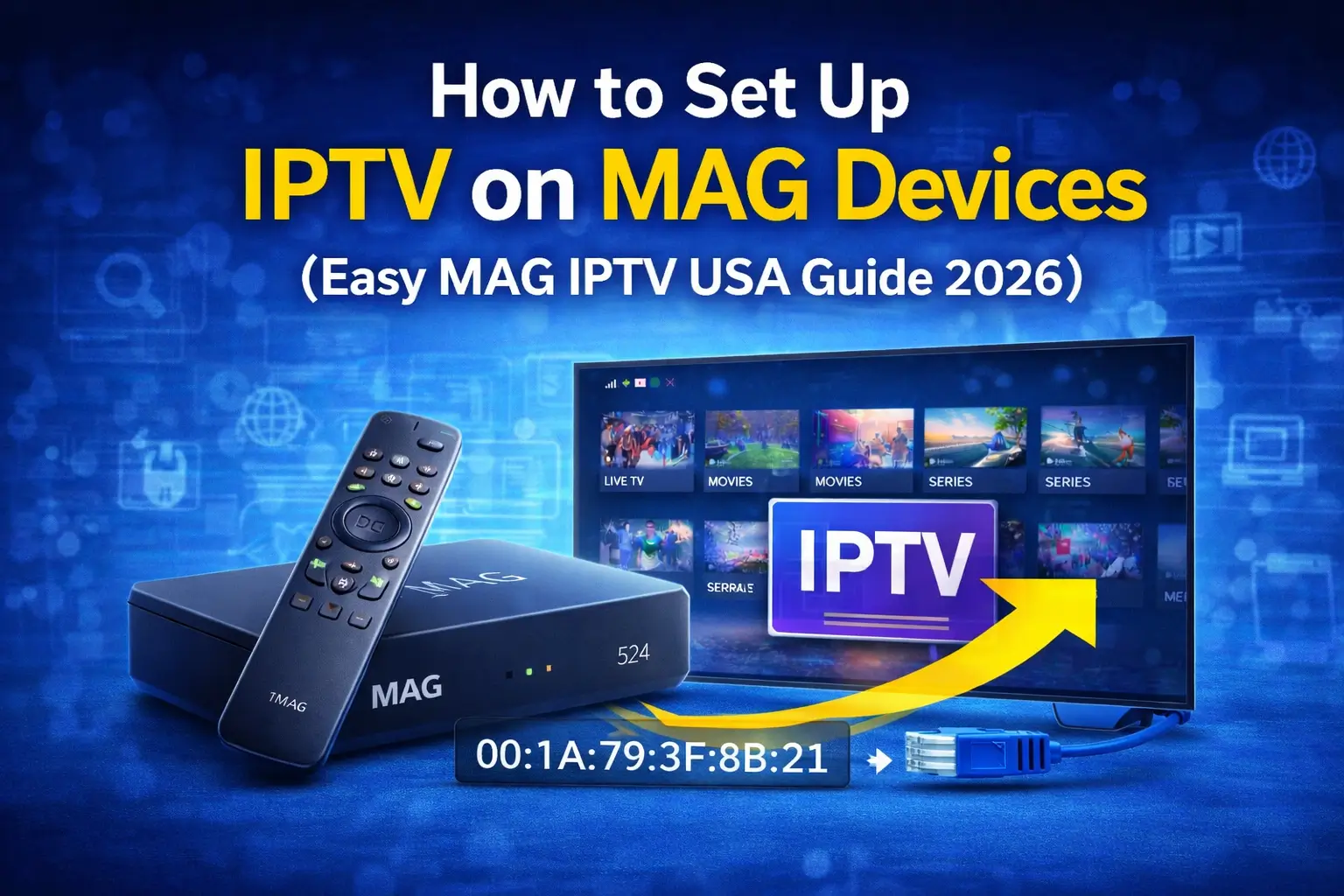
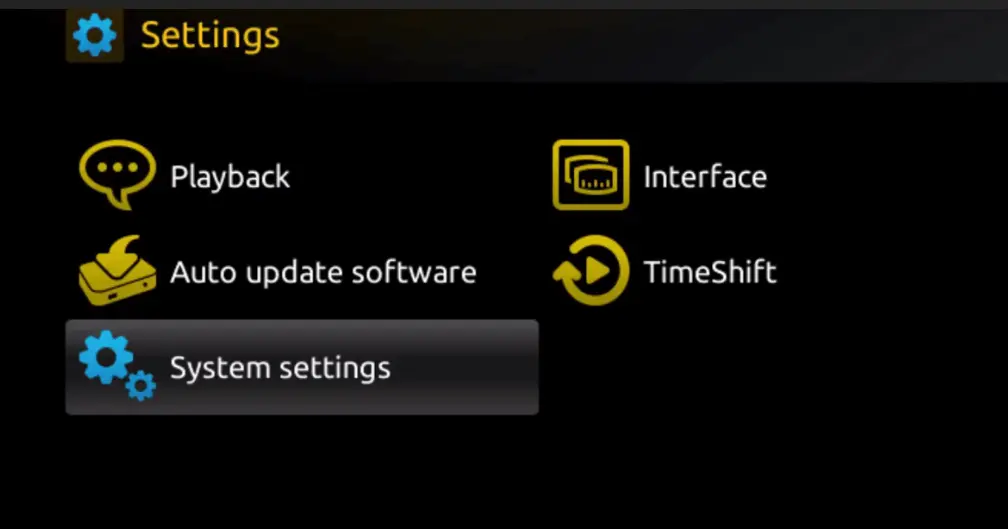
Step 1: When the box finishes loading, the main portal screen will appear. From there, click on “Settings” and use the remote to press the “SETUP/SET” button.
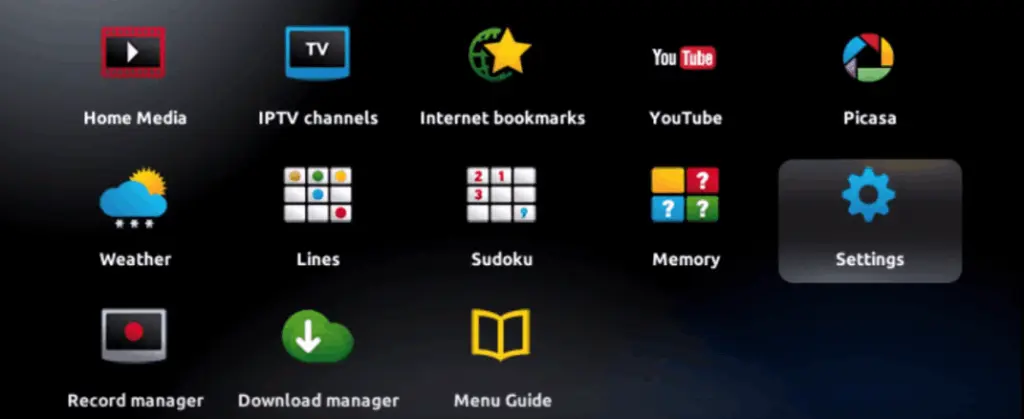
Step 2: Next, select “System settings“.
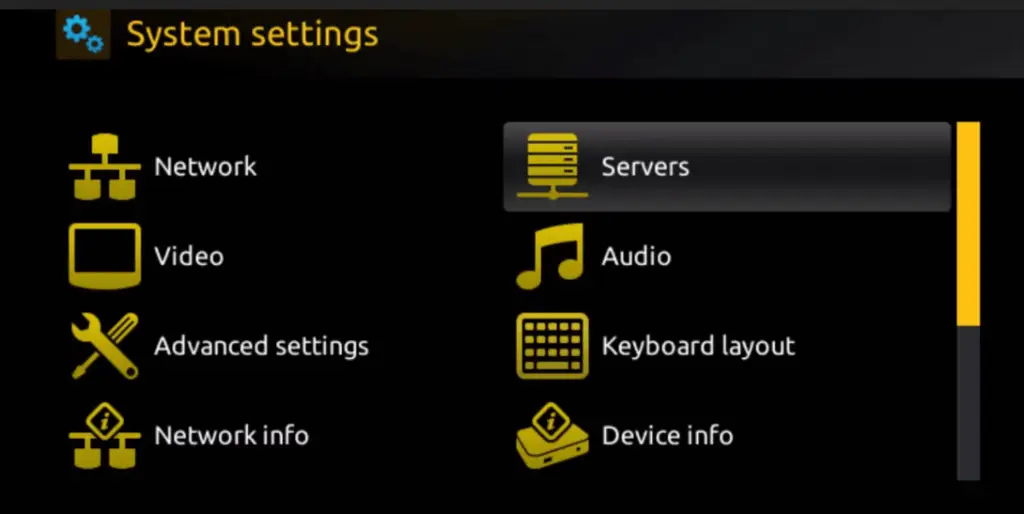
Step 3: Once in the System settings, click on “Servers“.
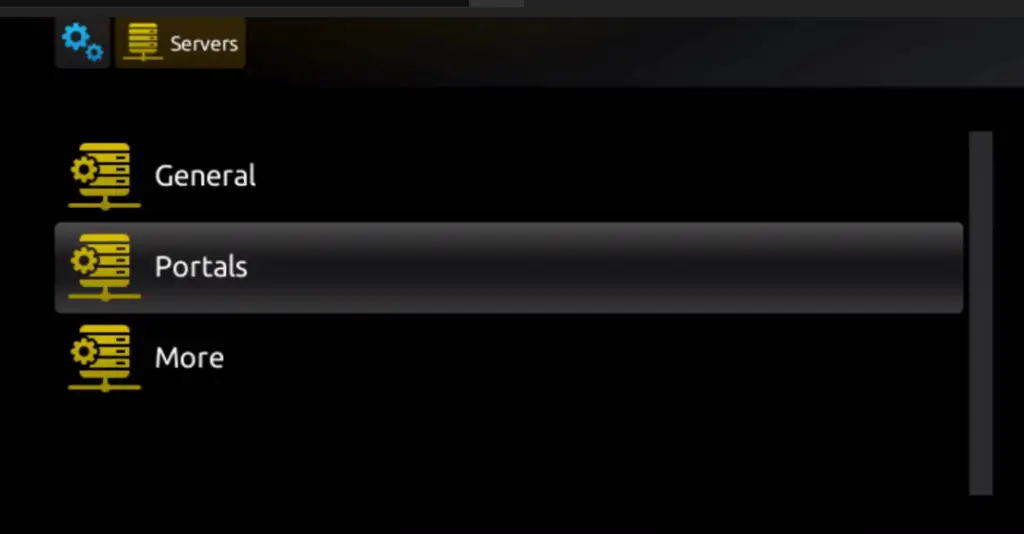
Step 4: From the Servers menu, select “Portals“.
Step 5: In the “Portal 1 name” field, enter a name for your portal, and in the “Portal 1 URL” field, enter the corresponding URL for your portal.
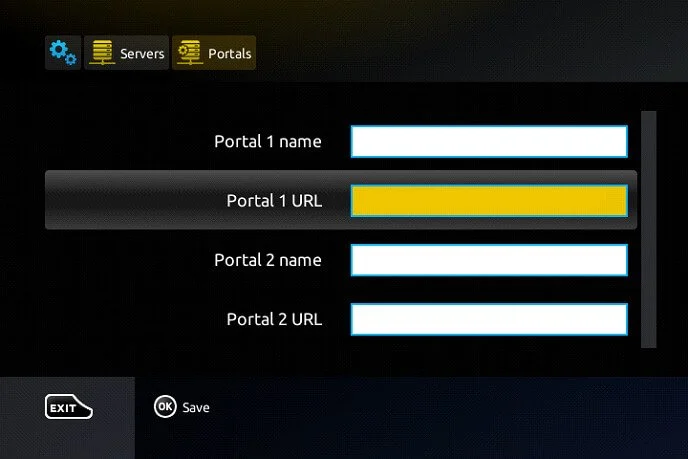
To activate your IPTV subscription on your MAG box, please send us your MAC address, which can be found on the label behind the box, along with your order. The activation will be done remotely, and once completed, we will provide you with a URL link that you’ll need to enter on your portal.
Step 6: Click “OK” to save the changes.
Step 7: After saving the changes, click “EXIT” on your remote control.
Step 8: Finally, reboot the box by selecting “OK” to apply the changes.
Note that The Beast Stream will provide you with all the necessary information via email to complete the activation process.